Short answer: To disable Adobe Acrobat automatic updates on Windows 10 or 11, go to Edit → Preferences → Updater inside Acrobat and select “Do not download or install updates automatically.” For a more complete block, you can also disable the Adobe Acrobat Update Service in Windows Services and remove the update task from Task Scheduler. This guide covers all three methods so you can choose the level of control that fits your situation.
Adobe Acrobat is set to check for and install updates automatically by default. For most users, that is fine — updates arrive quietly in the background and the software stays current without any effort. But there are real, legitimate reasons to turn this off. Maybe you are managing a specific version for compatibility with a workflow or a plugin. Maybe you want to control exactly when updates happen on a shared machine. Or maybe updates are triggering at inconvenient times and you simply want them on your schedule.
The process to disable Adobe Acrobat automatic updates on Windows 10 or 11 is straightforward, but there are actually three separate layers that control it — and depending on how thorough you want the block to be, you may want to address more than one of them. Acrobat’s own preferences give you the quickest control. The Windows Services panel lets you shut down the background update service entirely. And Task Scheduler allows you to remove the scheduled update task that runs independently of the service.
Most users only need Method 1. If you want to be certain updates cannot run at all — especially on a managed or shared machine — Method 2 and Method 3 together provide a complete block.
Three Ways to Disable Automatic Updates — Choose What Fits
Method 1 — Acrobat Preferences
Turn off automatic updates directly inside Acrobat’s settings. Quickest option, reversible anytime. Works for most users.
EasiestMethod 2 — Windows Services
Disable the Adobe Acrobat Update Service so it can no longer run in the background. More thorough than preferences alone.
IntermediateMethod 3 — Task Scheduler
Remove or disable the scheduled update task that runs independently of the service. Used alongside Method 2 for a complete block.
AdvancedDisable Automatic Updates in Acrobat’s Settings
This is the fastest and most accessible way to disable automatic updates. It works for both Adobe Acrobat Standard and Pro and does not require administrator-level access to Windows Services or Task Scheduler. This is the right starting point for most users.
Open Adobe Acrobat on your Windows 10 or 11 computer.
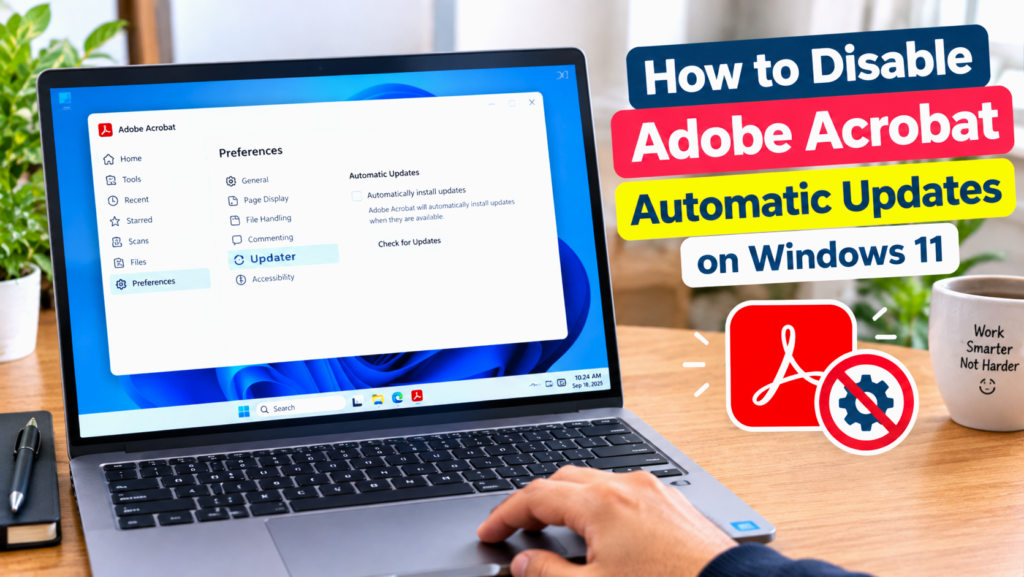
Go to Edit in the top menu bar and select Preferences at the bottom of the dropdown. Alternatively, press Ctrl + K to open Preferences directly.
In the Preferences panel, scroll through the left-hand category list and click Updater.
Under the Updates section, you will see several options. Select “Do not download or install updates automatically.”
Click OK to save the change and close Preferences.
• “Automatically install updates” — Acrobat downloads and installs updates without asking you.
• “Download updates but let me choose when to install them” — downloads happen in background, you approve installation.
• “Notify me but don’t download or install updates” — Acrobat alerts you an update is available, does nothing automatically.
• “Do not download or install updates automatically” — completely silent; no automatic action of any kind.
Disable the Adobe Acrobat Update Service
Even with the Updater preference set to “Do not download or install,” the Adobe Acrobat Update Service — a Windows background service called AdobeARMservice — continues to run. This service is responsible for initiating updates independently of Acrobat being open. Disabling it provides a more complete block and is particularly useful on shared or managed machines where you want to ensure no updates can slip through.
Press Win + R on your keyboard, type services.msc, and press Enter. The Windows Services manager will open.
Scroll through the list to find Adobe Acrobat Update Service. You can click the Name column header to sort alphabetically, then scroll to “A” to find it faster.
Right-click Adobe Acrobat Update Service and select Properties.
In the Properties window, look at the Startup type dropdown. Change it from Automatic to Disabled.
If the Service status shows “Running,” click the Stop button to stop it immediately. Then click Apply and OK.
Restart your computer. After the restart, the service will remain disabled and will not start on boot.
Disable the Adobe Acrobat Update Task in Task Scheduler
Adobe Acrobat registers a scheduled task in Windows Task Scheduler that can trigger update checks independently of the Windows Service. In some configurations, this task can still initiate update activity even when the service has been disabled. Disabling or deleting this task alongside Method 2 provides the most complete block available without modifying the Windows registry.
Press Win + S, type Task Scheduler, and press Enter to open it. Alternatively, press Win + R, type taskschd.msc, and press Enter.
In the left panel, expand Task Scheduler Library → Adobe. If the Adobe folder is not visible, expand Task Scheduler Library and look for Adobe-related tasks at the top level.
Look for a task named Adobe Acrobat Update Task or something similar — it may appear as AdobeGCInvoker-1.0 or Adobe Genuine Software Integrity Service depending on your Acrobat version.
Right-click the update task and select Disable. The task will remain listed but will no longer run on its schedule.
Alternatively, you can select Delete to remove it entirely — though Disable is preferable since it allows you to re-enable it if needed later.
If you see multiple Adobe-related tasks, check each one — right-click and choose Properties to read the description and confirm whether it relates to updates before disabling it.
Close Task Scheduler. No restart is required for this change to take effect.
Which Method Should You Use?
| Method | Best For | Blocks Updates | Reversible | Admin Required |
|---|---|---|---|---|
| Method 1 Acrobat Preferences |
Most personal users who want simple control | Partial — stops auto-install, service still runs | ✓ Yes | ✗ No |
| Method 2 Windows Services |
Users who want the update service fully stopped | Strong — background service no longer runs | ✓ Yes | ✓ Yes |
| Method 3 Task Scheduler |
Managed machines, IT environments, complete block | Complete — scheduled task removed or disabled | ✓ Yes | ✓ Yes |
| Methods 1 + 2 + 3 All three combined |
Shared machines, version-controlled environments | Complete — all update mechanisms addressed | ✓ Yes | ✓ Yes |
How to Update Acrobat Manually After Disabling Automatic Updates
Disabling automatic updates does not mean your Acrobat has to fall behind. You can still update at any time using either of the following approaches — and doing so periodically is recommended to stay current with security patches.
Option A — Update from inside Acrobat
Open Acrobat and go to Help → Check for Updates.
Acrobat will check Adobe’s servers and display any available updates. Click Install to apply them.
Option B — Download and run the installer manually
Sign in to your Adobe account at Adobe’s official website and navigate to your apps.
Download the latest Acrobat installer for your plan (Standard or Pro).
Right-click the downloaded installer and select Run as administrator. The installer will update your existing version in place without removing any settings or preferences.
Common Variations
The Updater option is greyed out in Acrobat Preferences
If the Updater category is greyed out or inaccessible, Acrobat’s update behavior is being controlled by a Group Policy or an administrator-level setting — typically on a managed or enterprise device. In this case, you cannot change the update preference through Acrobat’s UI. Method 2 (Windows Services) or a Group Policy adjustment by your IT administrator is the path forward.
Adobe Acrobat Update Service does not appear in the Services list
On some installations — particularly older versions or certain Acrobat Reader installations — the AdobeARMservice may not be present. This is not a problem; it simply means that service was never installed on your system. In this case, Method 1 (Acrobat Preferences) is sufficient, and you can proceed to Method 3 (Task Scheduler) to address the scheduled task if desired.
Acrobat keeps updating itself even after applying all three methods
If updates continue to install despite disabling all three mechanisms, the Creative Cloud desktop app may be managing and pushing updates to Acrobat independently. Open Creative Cloud, click on your profile or the gear icon, go to Preferences → Creative Cloud → Apps, and disable “Keep Creative Cloud apps up to date.” This prevents Creative Cloud from overriding your Acrobat update settings.
You want to disable updates only temporarily, not permanently
Method 1 is the best fit for a temporary pause. Change the Updater preference to “Notify me but don’t download or install” — this gives you awareness without any automatic action. When you’re ready to resume normal updates, go back to Preferences → Updater and switch back to “Automatically install updates.”
You are on a work computer managed by an IT department
On domain-joined or managed devices, individual users may not have permission to stop services or modify Task Scheduler. Acrobat update behavior in these environments is often controlled through Group Policy Objects (GPOs) applied at the organization level. Contact your IT administrator to adjust update settings through the appropriate management channel — trying to override these manually may conflict with policy or be reversed automatically at the next policy refresh.