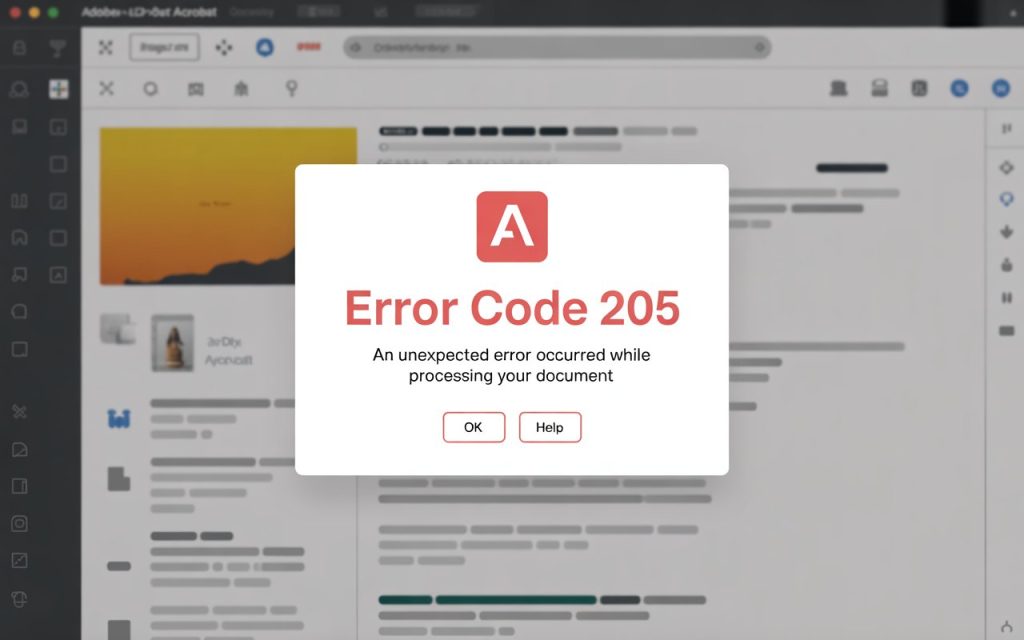
You clicked on Adobe Acrobat, and instead of opening your PDF, you got hit with that dreaded message:
Sound familiar? You are definitely not alone. This is one of the most reported Adobe errors in 2026 — and the good news is, it is completely fixable.
Whether you are a freelancer, a student, or a business professional who relies on Acrobat every day, this error can feel like a wall blocking your entire workflow. But do not worry — in this guide, we are going to walk through exactly what Error Code 205 means, why it happens, and how to fix it step by step.
No tech jargon, no confusing commands you have never seen before. Just clear, simple fixes you can follow right now — even if you are not a tech expert. If you need hands-on help at any point, our Adobe Acrobat Support page is always one click away.
What Is Adobe Acrobat Error Code 205?
Adobe Error Code 205 is a licensing and authentication error. It does not mean your computer is broken or that your files are damaged. What it actually means is that Adobe Acrobat is having trouble verifying your subscription or license through its secure storage system. According to Adobe’s official help documentation, most Acrobat errors are tied to installation or authentication issues that can be resolved without reinstalling the software.
Here is the technical side of it: Adobe Creative Cloud stores your account and license information in a secure location on your computer — called the Windows Credential Manager (on Windows) or the macOS Keychain (on Mac). When Acrobat cannot read or write to that secure storage — for any reason — it throws Error 205 and refuses to open.
This error can also appear when the installer file is incomplete or damaged, or when a firewall is blocking Adobe’s connection to its servers.
Why Does This Error Happen? (The Real Causes)
Before jumping into the fixes, it helps to understand what might have triggered Error 205 on your computer. Here are the most common reasons:
- Session / Login Issue: Your Adobe login session expired or got corrupted.
- Corrupt Stored Credentials: Windows Credential Manager or macOS Keychain data got damaged or is out of sync.
- Firewall or Antivirus Blocking Adobe: Windows Defender, Norton, McAfee, or a corporate firewall is blocking Adobe’s license check servers.
- A Recent System Update Changed Permissions: A recent Windows or macOS update changed security permissions.
- Modified Hosts File: Rare case — if the Hosts file was modified (sometimes by old pirated software), Adobe servers can get blocked.
- Incomplete Installation: The installer file downloaded incorrectly and some files are missing or corrupt.
90% of users fix Error 205 with just the first two steps in this guide. The advanced steps below are only needed in stubborn cases.
How to Fix Adobe Acrobat Error Code 205 — Step-by-Step
Work through these fixes in order. Start with Fix 1 and only move on if the previous step did not work for you.
Step 1: Sign Out and Sign Back Into Adobe (The Quick Fix)
This is the fix that works for most people — and it takes less than 2 minutes.
On Windows:
- Open the Adobe Creative Cloud desktop app from your taskbar (bottom-right corner).
- Click on your profile icon (top-right) and select Sign Out.
- Fully close the Creative Cloud app.
- Restart your computer.
- Open Adobe Creative Cloud again and sign back in with your Adobe ID.
- Now try opening Adobe Acrobat.
On Mac:
- Click the Creative Cloud icon in your Menu Bar.
- Click on your profile name and choose Sign Out.
- Quit Creative Cloud completely (right-click the icon > Quit).
- Restart your Mac.
- Reopen Creative Cloud and sign in fresh.
- Launch Acrobat and check if the error is gone.
Always restart your computer between signing out and signing back in. Many users skip this and wonder why the fix did not work!
Step 2: Clear Credential Manager (Windows) or Keychain (Mac)
If signing out did not solve it, the stored license data on your computer may be corrupted. This step clears it so Adobe can start fresh.
Windows — Using Command Prompt:
- Press the Windows key, type cmd, and right-click Command Prompt — choose Run as Administrator.
- Copy and paste the following command and press Enter:
- Once the command runs, open the Creative Cloud app and sign back in.
- Try launching Adobe Acrobat again.
Mac — Using Keychain Access:
- Open Spotlight Search (Command + Space), type Keychain Access, then press Enter.
- In the search bar within Keychain Access, type Adobe.
- Delete any Adobe-related entries you find (right-click > Delete).
- Sign back into Creative Cloud and try opening Acrobat.
Step 3: Run Adobe Acrobat as Administrator (Windows Only)
Sometimes Windows security settings prevent Acrobat from accessing what it needs. Running it as Administrator can bypass this:
- Find the Adobe Acrobat icon on your desktop.
- Right-click on it.
- Select Run as Administrator.
- Click Yes on the User Account Control prompt.
If Acrobat opens successfully this way, you can make it permanent:
- Right-click the Acrobat icon > Properties.
- Go to the Compatibility tab.
- Check “Run this program as an administrator”.
- Click Apply and OK.
Step 4: Use the Repair Tool in Acrobat
Adobe Acrobat has a built-in Repair feature that can fix missing or damaged files without a full reinstall.
Windows:
- Press Windows + R, type appwiz.cpl, and press Enter.
- Find Adobe Acrobat in the list and click on it.
- Click Change at the top (not Uninstall).
- Select Repair and follow the prompts.
- Restart your computer and try opening Acrobat.
Mac:
- Open the Creative Cloud desktop app.
- Find Adobe Acrobat in the Apps section.
- Click the three-dot menu next to Acrobat.
- Choose Repair Installation.
Step 5: Temporarily Disable Firewall or Antivirus
Your security software might be blocking Adobe from connecting to its license verification servers. Here is how to check:
- Temporarily disable Windows Defender Firewall (Start > Windows Security > Firewall & Network Protection > Turn off).
- If you have third-party antivirus (Norton, McAfee, Kaspersky), pause it for 10 minutes.
- Try opening Adobe Acrobat.
- If it works, the firewall was the culprit — add Acrobat to your antivirus/firewall whitelist.
- Remember to re-enable your firewall after testing.
Only disable your firewall temporarily for testing. Always re-enable it afterward to keep your system protected.
Step 6: Clear Adobe Cache Files
Corrupt cache files are another common trigger for Error 205. Clearing them forces Acrobat to rebuild a clean version.
Windows:
- Press Windows + R, type %temp%, and press Enter.
- Look for any folders named Adobe or Acrobat.
- Delete those folders (Acrobat must be closed first).
- Reopen Creative Cloud and launch Acrobat.
Mac:
- Open Finder > Go > Go to Folder.
- Type ~/Library/Caches/ and press Enter.
- Find and delete any Adobe or com.adobe.acrobat folders.
- Empty the Trash and relaunch Acrobat.
Step 7: Uninstall and Reinstall Using the Adobe Cleaner Tool
If none of the above steps worked, there may be deep leftover files from a previous installation causing conflicts. The Adobe Cleaner Tool removes everything completely.
The Cleaner Tool removes ALL Adobe applications from your computer. Back up your Acrobat preferences and any important custom settings before proceeding.
- Visit the official Adobe website and search for Adobe Creative Cloud Cleaner Tool.
- Download and run the tool as Administrator.
- Follow the on-screen instructions (select English, then choose All to clean all Adobe files).
- Restart your computer completely after the cleanup.
- Go to the Adobe website and download the latest Creative Cloud installer.
- Install Creative Cloud fresh, then install Adobe Acrobat from the Apps section.
- Sign in with your Adobe ID and test Acrobat.
Quick Reference: Error 205 Fixes at a Glance
| Fix | Time Needed | Best For |
|---|---|---|
| Sign Out / Sign In | 2 minutes | Works for most users |
| Clear Credentials | 5 minutes | Corrupted session data |
| Run as Administrator | 1 minute | Windows permissions issue |
| Repair Installation | 10 minutes | Damaged Acrobat files |
| Disable Firewall | 5 minutes | Network/firewall block |
| Clear Cache Files | 5 minutes | Corrupt cache data |
| Adobe Cleaner + Reinstall | 30 minutes | Deep install conflict |
Still Getting Error 205? Here Is What to Do Next
If you have tried all seven fixes above and Adobe Acrobat is still throwing Error Code 205, the issue might be something more specific to your system — like a group policy restriction on a work computer, a deep registry conflict, or a corrupted Windows user profile.
At that point, it is time to get a real person involved. Here is where to go:
- Option 1 — Call Our Experts: Call EasyInfoGuide independent Adobe support at 1-800-319-0494 — available 24/7.
- Option 2 — Email Support: Email [email protected] and describe your issue with a screenshot of the error.
- Option 3 — Live Chat: Live chat support is available on EasyInfoGuide.com for real-time guidance.
Adobe’s official support queue can mean hours of waiting. EasyInfoGuide provides independent, paid third-party support with fast response times — often resolving Error 205 in a single 15-minute session via remote assistance. Call 1-800-319-0494 now.
Frequently Asked Questions About Adobe Acrobat Error Code 205
Q: Is Error Code 205 caused by a virus or malware?
Not usually. Error 205 is almost always a licensing or credential storage issue — not a virus. However, if you ever used an unofficial or pirated version of Adobe software in the past, modifications that came with it might have caused Hosts file issues that can trigger this error. Run a malware scan if you are concerned, but do not assume the worst.
Q: Will I lose my files if I reinstall Adobe Acrobat?
No. Your PDF files are stored on your hard drive and are not affected by uninstalling or reinstalling Acrobat. However, any custom settings, stamps, or action wizards you created inside Acrobat may need to be reconfigured. Back those up before using the Cleaner Tool.
Q: Error 205 appeared out of nowhere — I did not change anything. Why?
This happens more than you would think. Adobe runs background license checks, and sometimes a Windows or macOS update changes security permissions that Acrobat relied on. A Creative Cloud auto-update can also knock credentials out of sync. The simple sign-out and sign-in fix (Step 1) usually resolves these surprise cases.
Q: I am on a work or school computer — can I still fix this myself?
It depends on your IT policy. If you have administrator access, the steps above should work. If you do not have admin rights, some fixes will require your IT department’s help. Show this guide to your IT team — it gives them exactly what they need.
Q: Does Error 205 affect other Adobe apps like Photoshop or Illustrator?
It can, yes. Because Error 205 is related to Creative Cloud’s license storage system, the same issue that blocks Acrobat might affect Photoshop, Illustrator, or Premiere Pro on the same machine. If multiple Adobe apps are failing, the credential clearing fix (Step 2) is especially likely to help across all of them.
Pro Tips to Prevent Error 205 From Coming Back
Once you have fixed the error, a few simple habits will help keep it from returning:
- Always sign out of Creative Cloud properly before major Windows or macOS updates.
- Keep the Adobe Creative Cloud desktop app updated — outdated CC versions cause more license sync issues.
- Add Adobe Acrobat and Creative Cloud to your antivirus or firewall whitelist permanently.
- Do not force-close Acrobat using Task Manager too often — it can corrupt the licensing session.
- If you share a computer, make sure each Windows user account has its own Adobe login.
Final Thoughts
Adobe Acrobat Error Code 205 is annoying — there is no sugarcoating that. But it is not a death sentence for your workflow. In the vast majority of cases, a simple sign-out and sign-in, or a quick credential cache clear, is all it takes to get back on track.
Work through the seven steps in this guide, starting with the simplest ones. Most users will not even need to get past Step 2. And if you do get stuck, the team at EasyInfoGuide is always here to help — just one phone call or email away.
🛠️ Need Help Right Now?
Our independent Adobe support experts are available 24/7 — phone, email, or remote assistance.
📞 Call 1-800-319-0494| EasyInfoGuide.com | Available 24/7