
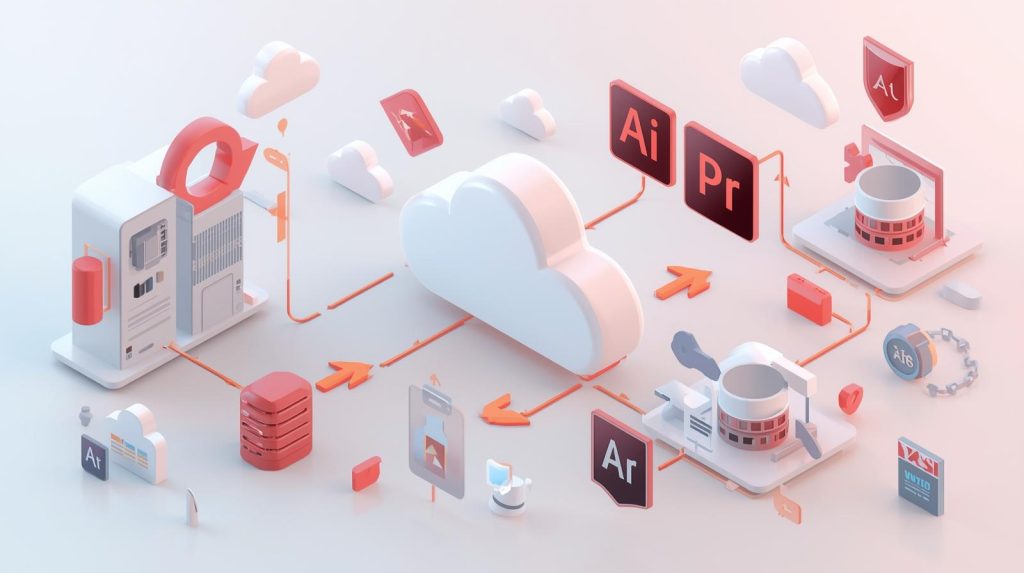
As a digital creative, the last thing you want is for your work to be misunderstood. Adobe Creative Cloud offers an array of powerful design, photography, video editing, and web development tools, but identifying which backup strategy works best for your projects isn’t always easy. This post is going to cover Adobe Creative Cloud Backup options such as native cloud storage, version history, and best practices for total peace of mind.
Also Read: Premiere Pro vs DaVinci Resolve
Understanding Adobe Creative Cloud Storage
Adobe Creative Cloud has cloud storage services integrated with all of its subscription plans. This storage is used to store cloud documents, libraries, and assets, so that one can access them easily on other devices or apps.
Cloud files – If you’ve worked on something in Photoshop, Illustrator, InDesign, or Fresco, it will be automatically saved to the cloud. A new version is created with each edit, and users are able to visit earlier versions through the Creative Cloud desktop app or Adobe Home. Reusable assets (such as colours, fonts, and graphics) are saved in libraries, whereas public files such as PDFs or images may be uploaded for? storage.
Storage limits vary by plan:
- 100 GB included for Basic and 1 TB of storage included with Creative Cloud on Marketplace (or 20 GB for select Photography plans)
- Teams and enterprise plans come with 1 TB of storage per user, pooled for sharing across users.
Be aware that the older “Creative Cloud Files” was removed for most users in early 2025 and that Adobe is driving people towards modern cloud documents and libraries. This alteration highlights the necessity of relying on current tools for HDD backup.
Backup Features Included with Adobe Creative Cloud
Protect your work with one of the Adobe Creative Cloud Backup Options. You have several native Adobe Creative Cloud backup options built right into the product.
Cloud Documents and Version History
Cloud documents provide automatic backup and a history of versions. As you work, incrementally saved versions are created, and you can restore to a previous state. To access versions:
- Open the file using the app that you want to upload.
- Go to File > Version History (or similar menu).
- Choose a different trajectory and restore.
It serves as a strong internal backup; there’s always that room if something gets mistakenly modified/deleted/etc.
Cloud Libraries
Libraries automatically sync assets between apps and devices. Automatically backs up to the cloud, so even if local files are lost, the contents remain available.
File Sync and Local-Cloud Integration
Although full two-way syncing was wound down for general files, cloud documents are still synced. Local files saved to assigned folders (if there are) will be a mirrored copy of cloud files with double protection.
Recovery of Deleted Items
Trash and version history can often retrieve deleted cloud documents and libraries, providing a safety net.
And, the built-in options in Adobe Creative Cloud can provide a strong place to start backing up – especially for current projects.
Drawbacks of Adobe’s Built-in Backup Solution
Although it is convenient, Adobe Creative Cloud storage doesn’t serve as a primary backup strategy. It isn’t fully redundant in more than one geographical location, it doesn’t automatically archive files offsite, and it also does not retain your data for a certain period of time. Cloud-based storage makes it easy to collaborate and access files, but you might experience account problems, accidental deletions, or service outages.
Adobe’s terms state that you own your data. Depending only on off-site storage may result in loss of data if volume limitations are reached or membership is terminated. For important projects, it is recommended to use an additional backup in combination with Adobe.
Recommended Third-Party Backup Solutions
You might wish to use other tools to make your data more secure; in this way, you can combine them with Adobe Creative Cloud Backup Options.
External Hard Drives & NAS Devices
Transfer files from the local machine onto external drives or NAS on a regular basis. This provides offline backups that are not susceptible to cloud-related hazards.
Cloud Backup Services
And there’s automatic syncing and versioning, provided by the likes of Dropbox, Google Drive, or Backblaze. Map your Creative Cloud folders so that you have mutable copies on these services.
Automated Backup Software
Local Creative Cloud folders can be backed up with Time Machine (macOS) or File History (Windows). Make sure to schedule backups daily to maintain up-to-date backups.
Hybrid Approaches
Work off Adobe’s cloud with current collaboration and version history, but backup locally and on another/redundant cloud for additional safety. This adheres to the 3-2-1 backup rule: three copies, two different media types, and one off-site.
How to back up Creative Cloud files: best practices
So, how do you put Adobe Creative Cloud Backup Options into practice?
- Cloud Documents: Save as Cloud Document with file > Save To Cloud supported Apps.Auto versioning.
- Keep an Eye on Your Storage: See quotas at the Creative Cloud desktop app’s Cloud activity icon.
- Turn on Track Changes: Monitor versions and restore as appropriate.
- Local Backups: Weekly external drive copies of project folders.
- Leverage More Cloud Services: Synchronize key folders with second and third-party cloud storage.
- Test Restorations: Routine validation that backups are available.
- Keep Track of Files: Organize files in a logical folder structure to save backups easily.
These techniques reduce your risk and help you recover faster.
Conclusion
The Best 6 Adobe Creative Cloud Backup Services. Adobe CC offers you backed up File Compatibility! A good ’Adobe Creative Cloud storage’ solution should ensure seamless synchronization of cloud data across all your installed devices, co-workers, friends, and even family. Adobe offers good tools for mundane backup, and these can be complemented by local and third-party backups in order to achieve complete data security. Once you have any of these as part of your work life, you can concentrate on what matters and rest assured that your projects are safe from loss. For any further queries related to Adobe Creative Cloud Backup Options, you can visit the Adobe website for more details, and also get help from our expert assistance at 1800-319-0494.
Backups are a must in any studio setting, and you need to prioritize that. Don’t wait, you can do these things to enforce your assets starting today.